Media library structure
This page explains the structure of a media library built with LightNet and the implementation details relevant to Site Administrators. It also explains key LightNet terminology used throughout the documentation.
The screenshots on this page are from the running example-template site, built from the example-template project.
Understanding media content in LightNet
Section titled “Understanding media content in LightNet”LightNet supports a wide range of media formats in a single Media Library. The four broad kinds most sites start with are:
- Videos
- Audio
- Images
- Documents
Media Types are configurable. A site can use format-based names such as Videos or Audio, or Ministry-specific names such as Sermons, Books, or Podcasts. A Media Library can include multiple Media Types.
A media item represents each piece of media content. Its metadata is organized into the following fields:
- Title
- Content Language
- Media Type
- Cover image
- Content
- Date created
- Description
- Authors
- Categories
Content can be stored on the LightNet Site or hosted elsewhere and linked to it. In a
Media Item, use upload for site-managed files and link for external URLs. See
Media Items for details.
Site navigation
Section titled “Site navigation”See LightNet Site navigation for a user-facing overview of what Users see and how they navigate a LightNet Site.
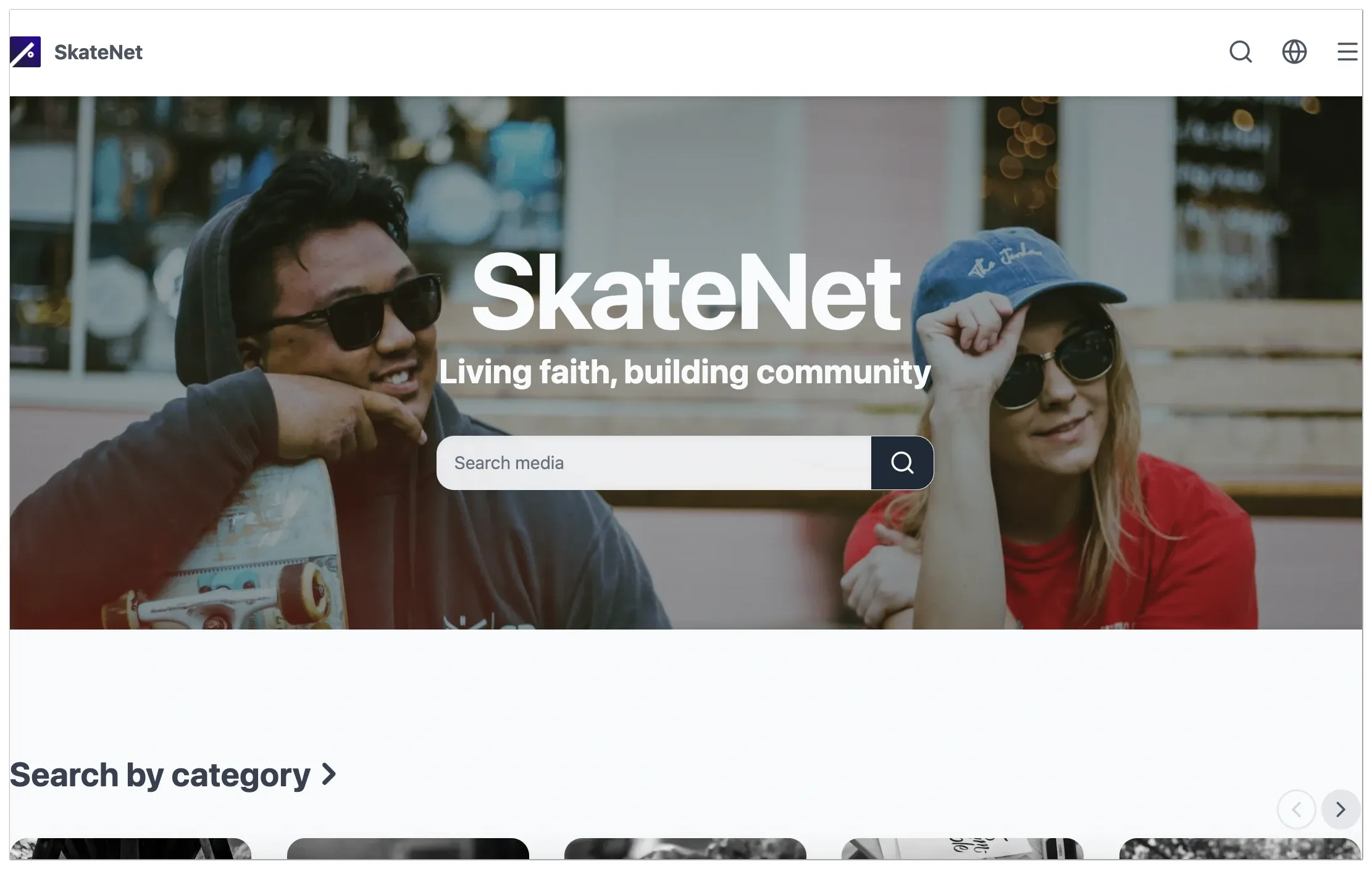
Homepage
Section titled “Homepage”The homepage is a customizable landing page. A Site Administrator can configure it to display selected media items in gallery views.
Search page
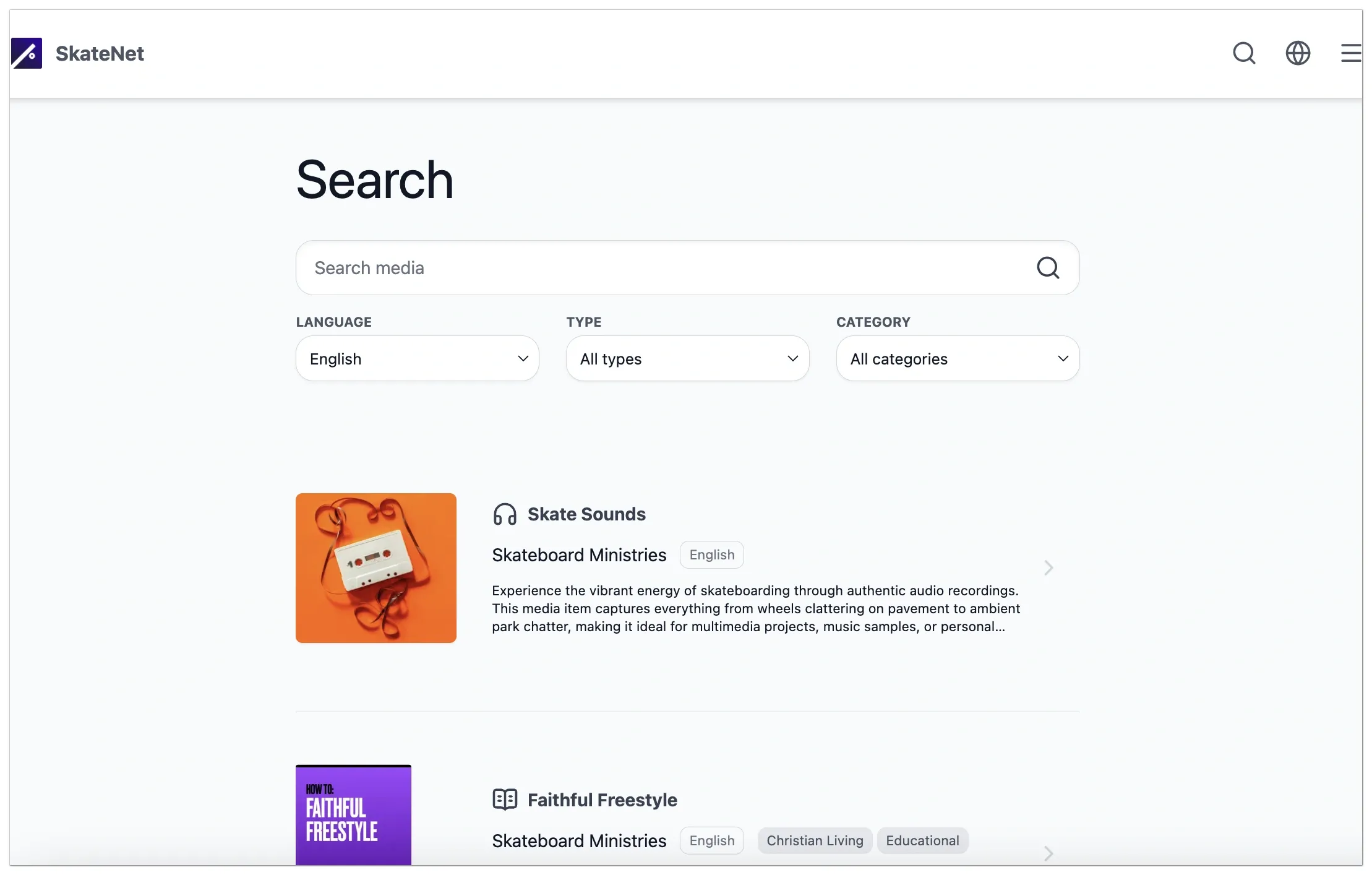
Section titled “Search page”The Search Page is accessible from the Header Bar by clicking the magnifier icon. It supports:
- Text searches for media items
- Filtering by Content Language, Media Type, or Categories
Media item details page
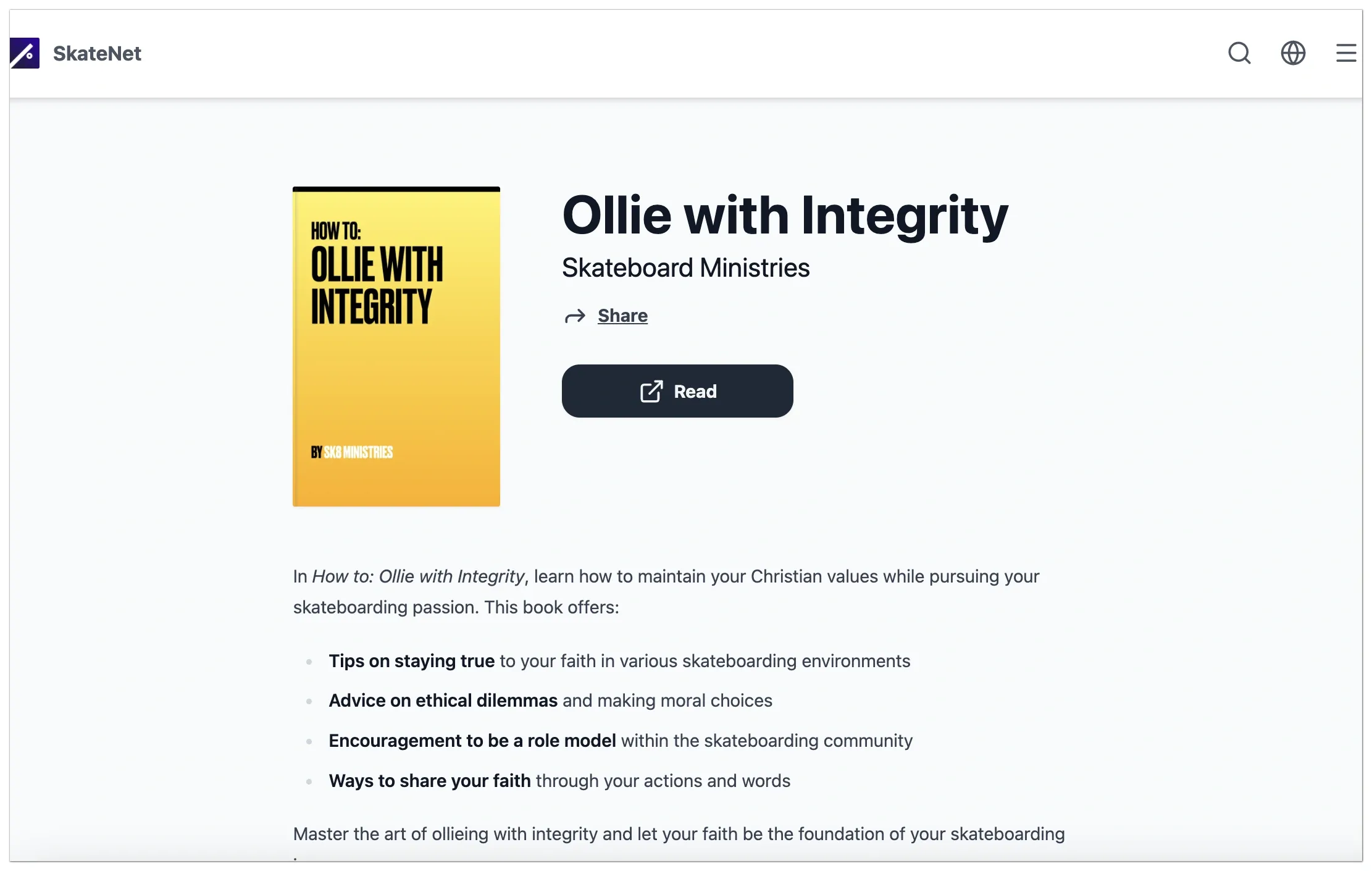
Section titled “Media item details page”The Media Item Details Page presents the Media Item’s metadata, including its title, description, cover image, and authors, and provides access to its Content. The first Content entry is the primary Content, and any remaining entries are additional Content. The layout of the Media Item Details Page is determined by its Media Type. The selected layout controls how the cover image, Content, and metadata are displayed.
Header bar
Section titled “Header bar”The Header Bar appears at the top of each page and contains:
- An optional site logo
- Site title
- Search icon
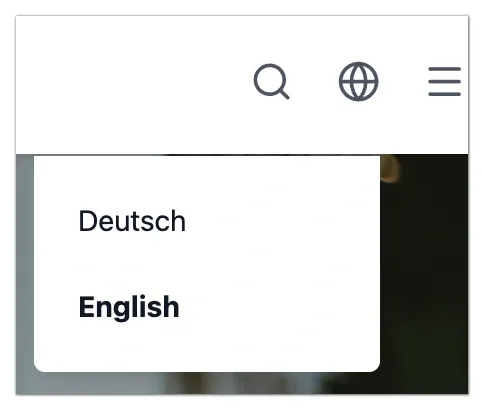
- Language Selection menu
- Main Menu icon

Language selection
Section titled “Language selection”The Language Selection Menu switches the Site Language. Selecting a different Site Language changes the locale and displays the LightNet Site in the selected language. This does not translate Media Items: their titles, descriptions, and other metadata remain in the original Content Language.
Main menu
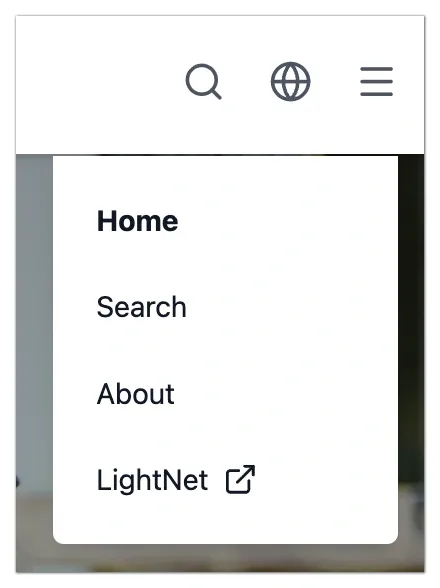
Section titled “Main menu”The Main Menu, opened via the three-line “hamburger” icon, allows navigation to:
- Internal pages, including Static Pages
- External websites
The Main Menu configuration uses the mainMenu
option in astro.config.mjs. Each menu item defines a destination and a localized label.
Footer
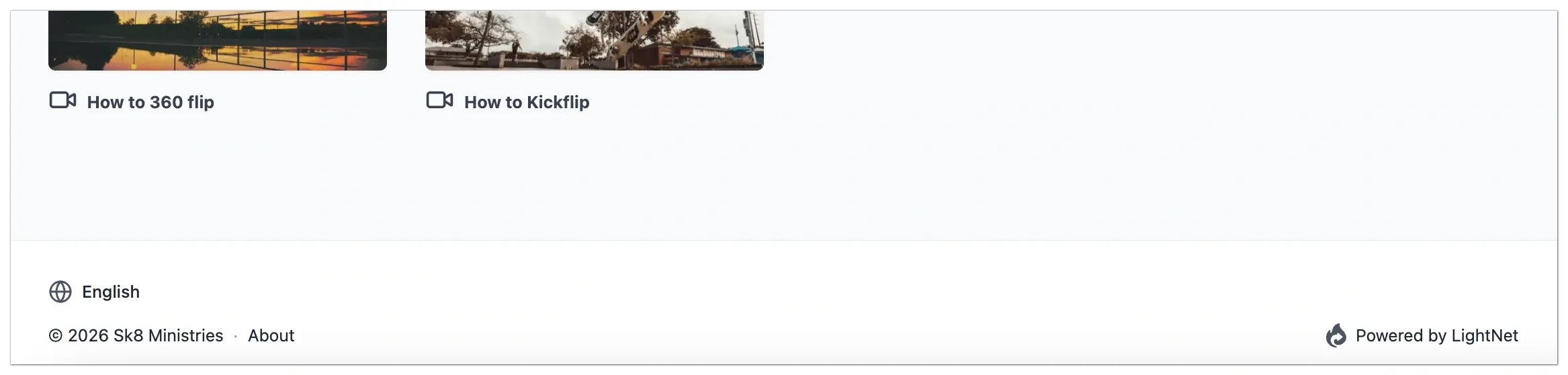
Section titled “Footer”The optional footer appears on every page. A Site Administrator can configure footer text, links, and a “Powered by LightNet” credit.
Static pages
Section titled “Static pages”Static Pages are custom pages that Site Administrators can create and link from the Main Menu or Footer.
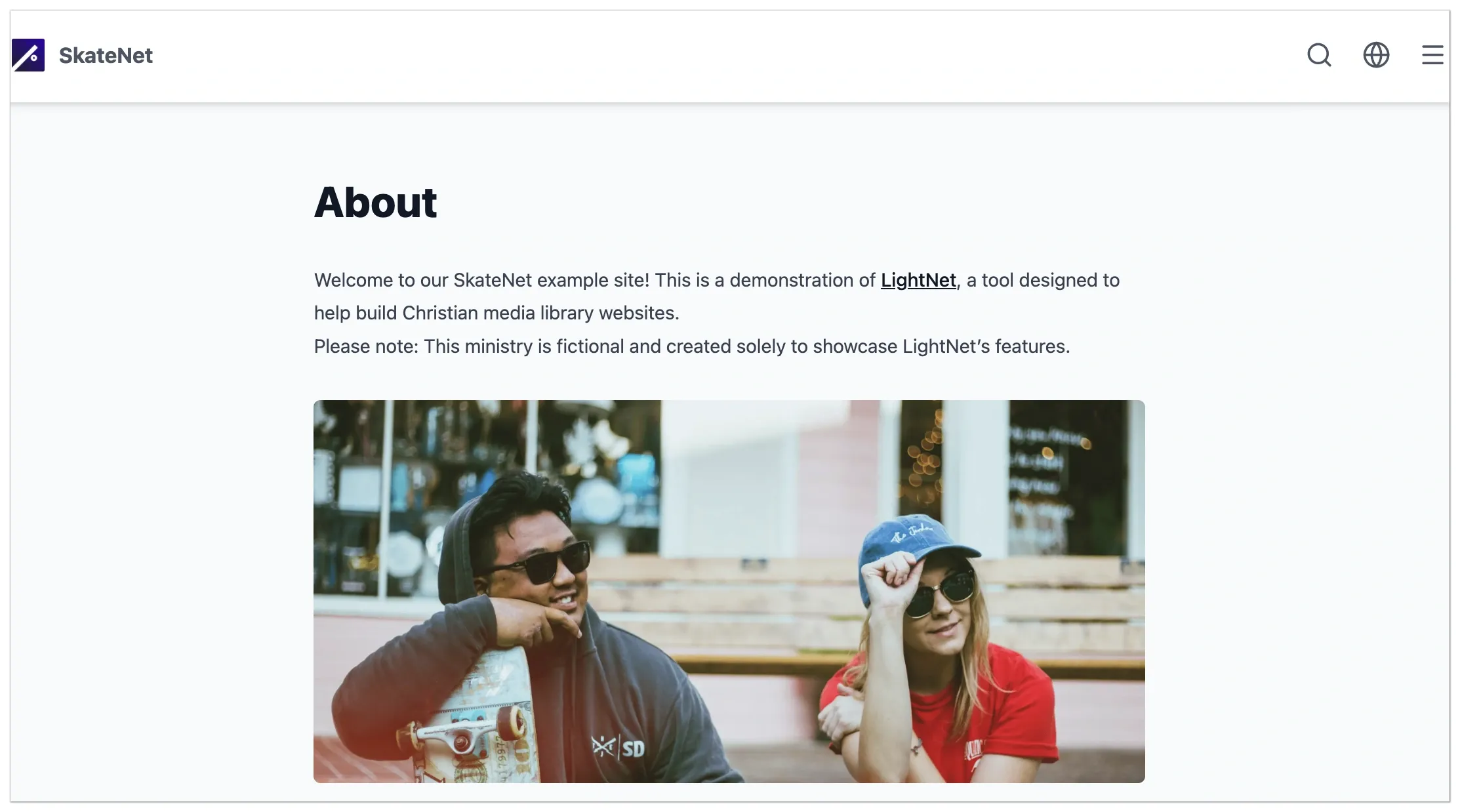
About page
Section titled “About page”An About Page is a common example of a Static Page. Site Administrators can use it to provide information about the Ministry or LightNet Site. See Create an About Page for details.
An About Page might include:
- A brief introduction to the site’s purpose and mission
- Details about the organization or individuals behind the media content
- Contact information or links to related resources
- Copyright notices and legal disclaimers